
Effortlessly find what you need
The revolutionary file search tool for Windows. Listary makes finding your files and launching apps blazing fast, for casual and power users alike!
Download Listary 6 for freeThe revolutionary file search tool for Windows. Listary makes finding your files and launching apps blazing fast, for casual and power users alike!
Download Listary 6 for freeNo more digging through folders to find your file. Listary searches your entire drive instantly, displaying the results in a smart order according to your habits.
.svg)

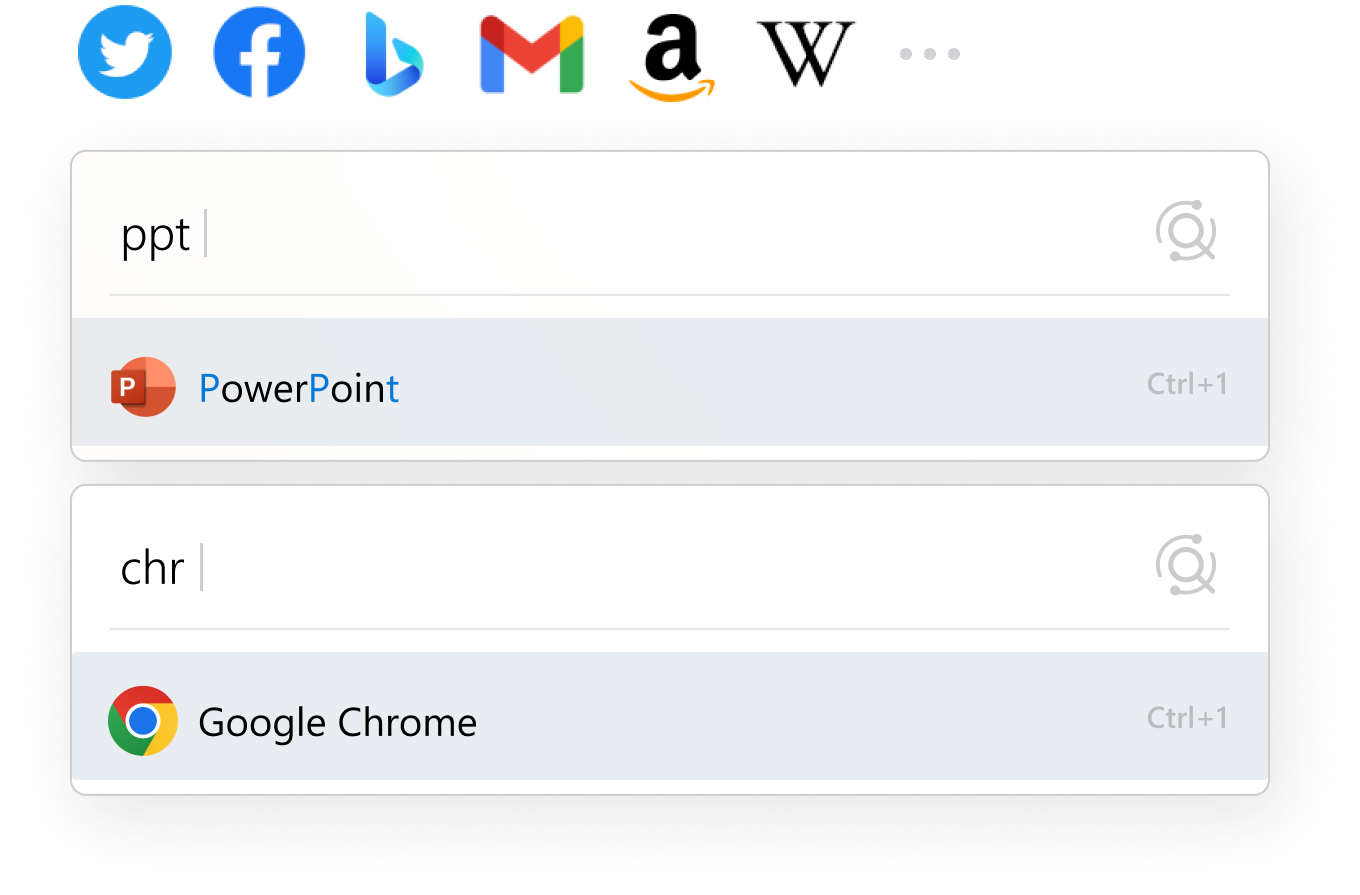
Quickly access your favorite apps with just a few keystrokes. Listary intuitively predicts your desired search result with fuzzy matching and a smart algorithm.
Effortlessly glance through sorted results, utilize advanced filters to pinpoint exactly what you're looking for, and tailor your search to your workflow for a seamless file management experience.
Tired of digging through multiple folders when Saving/Opening a file? With Quick Switch, just search to instantly jump to the folder you're looking for.

Search in milliseconds

Search your online drive
Prioritize results by your habits
Fuzzy matching
Greater Windows productivity starts with Listary.
Oh, and it’s 100% free.

I @UseListary every damn day. It has completely changed the way I access my files and folder.
If you haven't tried Listary you are missing out on the best little addition to Windows ever. Used it for a while now impressed enough to buy, check it out.
Windows Search just seems to get worse and worse over time - can you guys call either Apple or Listary and ask them how they do it?

Zero learning curve

Elegant, intuitive UI

Customizable
Ready to master how you search files
and launch apps on Windows?


